Plug in and write
After a one-time setup, connect an NTFS drive or flash drive and it’s checked and made writable automatically.
Volisle · NTFS read-write for Mac
Connect a Windows-formatted drive and edit and save in Finder, just like any other disk.
Version 0.9.6 · Free and open source · Apple silicon (Intel beta) · macOS 15.4 or later
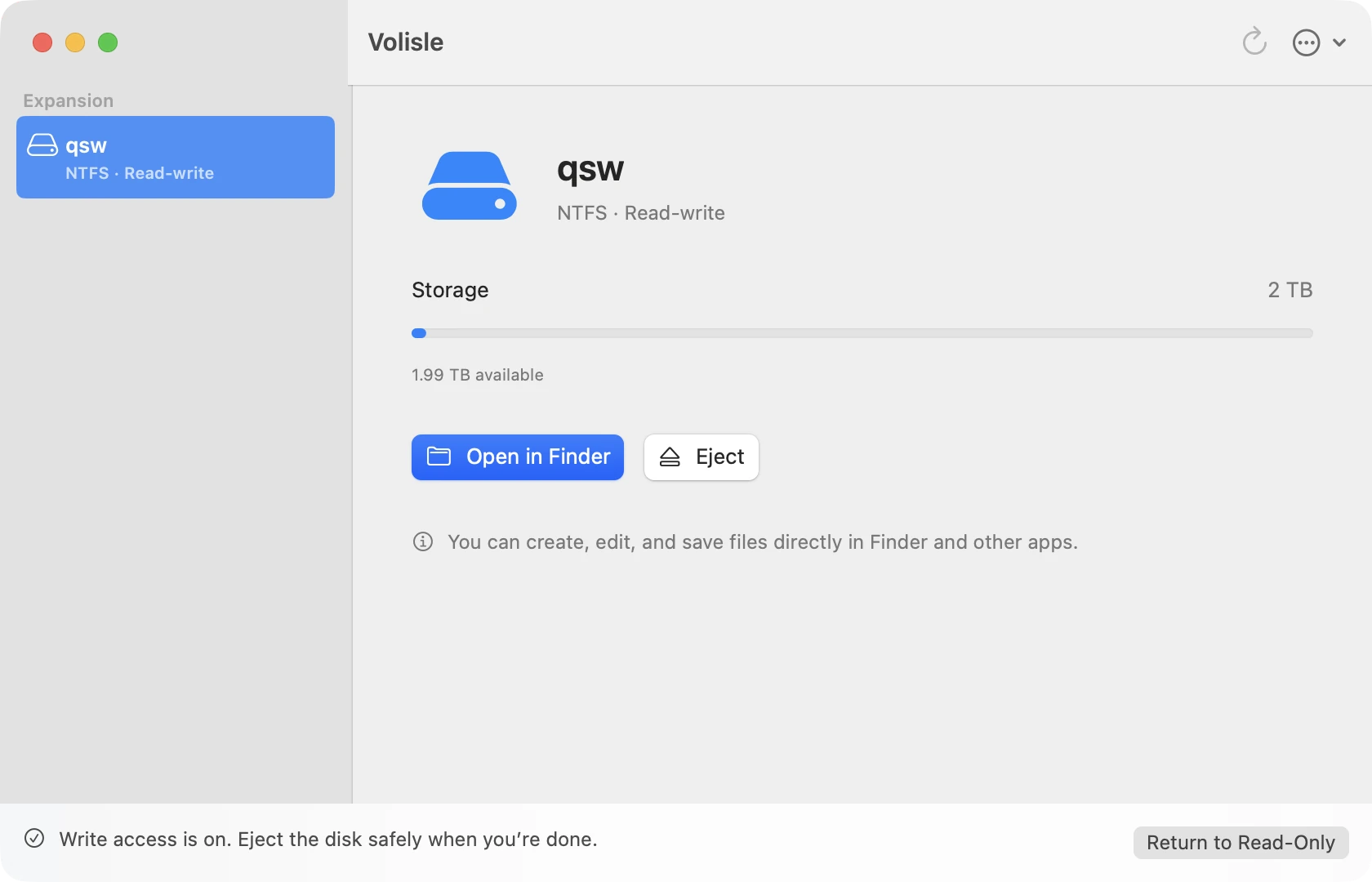
After a one-time setup, connect an NTFS drive or flash drive and it’s checked and made writable automatically.
Create, edit, and save in Finder and the apps you already use, just like any other disk.
Every write is recorded. Unplug by accident and Volisle recovers the disk before turning on writing again; copy any file that was in progress once more.
Windows file permissions are preserved. If Windows didn’t eject the disk safely, it stays read-only and Volisle tells you why.
Designed to be simple
After the first setup, all that’s left is plugging in and ejecting.
After installing, follow the prompts to turn on the file system extension and background component. Then forget about it.
Volisle checks the disk in the background and turns on write access when it passes—even with the window closed.
Work with files in Finder and your apps, then click “Eject” before unplugging.
Native, and just enough
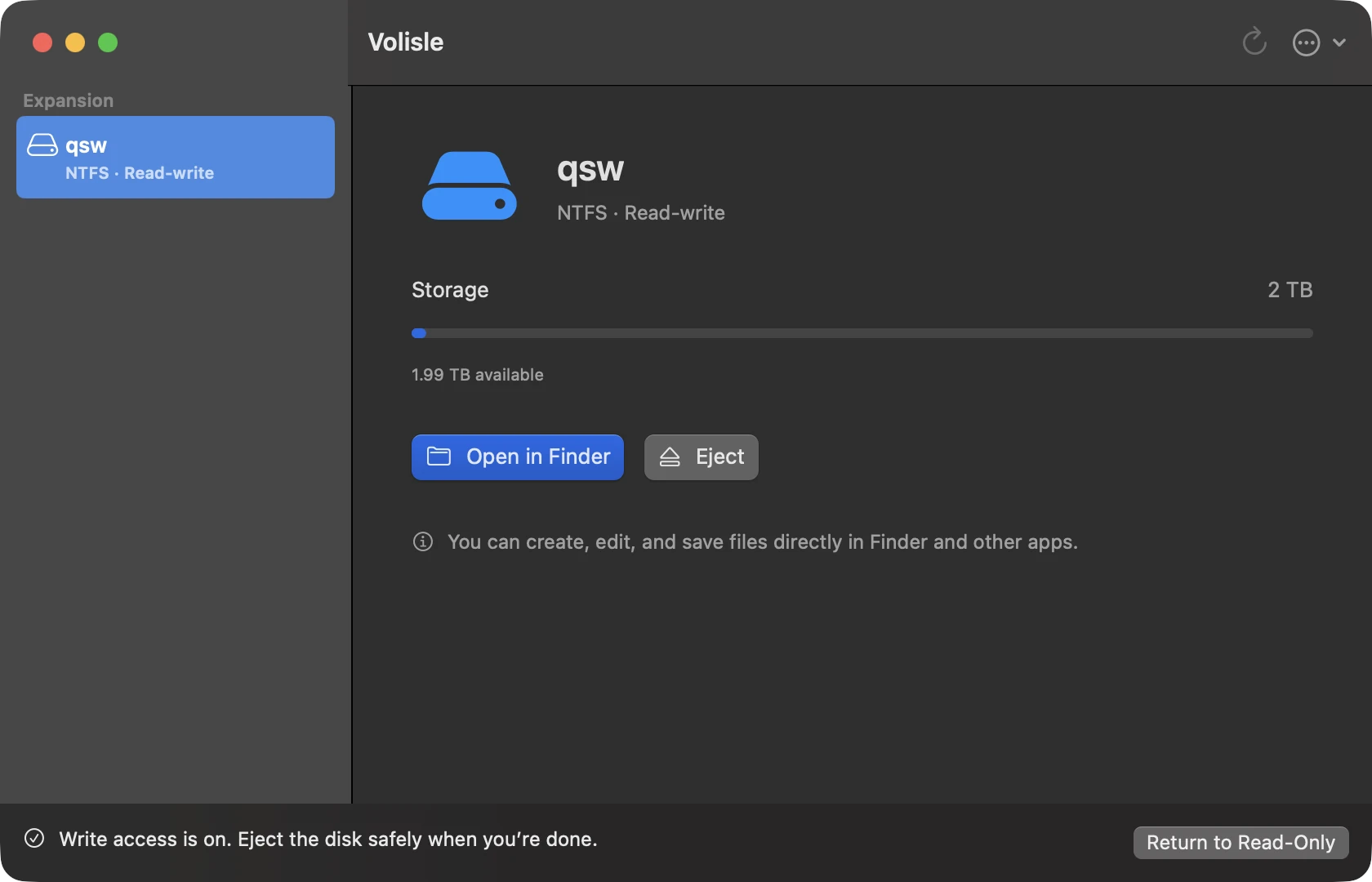
A native sidebar, a menu bar item, light and dark appearances, and keyboard shortcuts.
Fewer interruptions, more focus.
Your files, your control
Everything important runs on your Mac and file contents are never uploaded.
No accounts, analytics, or telemetry—diagnostics are exported only when you choose.
If Windows is hibernated, didn’t eject safely, or the disk needs a check, Volisle keeps it read-only and explains why. It never repairs or force-ejects on its own.
Compatibility at a glance
Anything not tested on real hardware isn’t called supported.
What isn’t covered yet is listed here too.
| Environment or feature | Status | What was verified |
|---|---|---|
| Apple silicon Mac · macOS 27.2 | Verified | Installation, automatic write access on connect, saving from apps, automatic recovery after unplugging mid-write, and round trips with Windows. |
| macOS 26.6 | Partly verified | Download, installation, and setup on a clean system, plus reading, writing, and interruption recovery on a disk image. Not yet verified with a physical USB drive. |
| macOS 15.6.1 | Partly verified | Tested in a virtual machine with USB test disks: automatic writes, copying, unplug-and-resume, recovery-file export, formatting, and four BitLocker formats. Not yet verified with a physical USB drive. |
| macOS 15.7.7, 15.8 and 15.8.1 | Read-write mounting unsupported | Read-write mounting is currently unsupported on macOS 15.7.7, 15.8 and 15.8.1. Files can still be opened and copied using macOS’s built-in read-only support. A system FSKit mounting failure was reproduced on 15.7.7 and 15.8.1, with similar user reports on 15.8. No effective workaround is currently available. Untested versions are not guaranteed compatible; check the verified versions in the compatibility table before upgrading. |
| Other macOS 15 versions | Not verified | The minimum installation version is macOS 15.4 (since 0.8.2). Main disk workflows were verified on 15.6.1; see the row above for limitations on 15.7.7, 15.8 and 15.8.1. Other macOS 15 versions remain untested; this does not establish that every 15.7 release is affected. |
| Intel-based Mac | Beta | The installer includes the Intel version and needs macOS 15.4 or later. It hasn’t been verified on an Intel Mac yet: every test of reading, writing, the write records and recovery after an unplug has run on the Intel architecture, but loading and mounting the file system extension on an Intel Mac is untested. Read-write mounting is unsupported on the affected versions listed above. If something goes wrong, export diagnostics in Settings → Support and report it on GitHub. |
| External USB NTFS drives and flash drives | Supported | Create, copy, edit and save, rename, move, and delete. Checked and made writable automatically when connected. |
| Saving from apps | Supported | Saving and replace-in-place from common apps such as TextEdit, including documents saved as folders (such as .rtfd, tested through the system document-saving interface). |
| Windows file permissions | Preserved | Permissions set in Windows stay the same after editing on Mac; files created on Mac inherit their folder’s permissions. |
| Permissions between Mac users | Not separated | As with exFAT disks on macOS, every user on the Mac can read and write the files. Don’t rely on it for access control or encryption. |
| Unexpected disconnects and crashes | Recovers automatically | The disk returns to its last complete state the next time it connects. Writes from about the last 20 seconds before the disconnect are rolled back too (a drive’s own cache is lost when power is cut); copy anything from that time again. |
| Windows not ejected safely, hibernated, or Fast Startup | Read-only protection | The disk stays read-only to protect your data, and Volisle explains why and what to do. |
| Sleep and wake during writes | Supported | Close the lid while writing; write access stays on after waking, with no need to reconnect. |
| Writing to several disks at once | Up to 2 | Up to two disks can be written at once, each on its own: unplugging, returning to read-only or ejecting one leaves the other untouched. A third disk stays read-only and gets write access once you eject one of them. Two partitions of one disk, or two cloned disks with the same serial number, are written one at a time. |
| BitLocker encryption | Read-write | Unlock with the password or 48-digit recovery key, then read and write in Finder. Fully encrypted volumes using XTS-AES or AES-CBC (the defaults since Windows 8). Not supported: Windows 7’s default “AES with Diffuser”, and disks Windows is still encrypting or decrypting. Opens read-only if the disk needs a check, comes from a hibernated Windows, or wasn’t ejected safely. |
| EFS-encrypted files | Not supported | No decryption or writing. |
| Interface language | English, Chinese | Follows your system language: Chinese systems show Chinese; English and other languages show English. |
FAQ
The website version is free, and the source code is available under the GNU GPL v2. There are no accounts, subscriptions, or in-app purchases.
Volisle checks a disk every time before turning on write access. If the disk wasn’t ejected safely from Windows last time, Windows is hibernated or using Fast Startup, or the disk is marked as needing a check, Volisle keeps it read-only and explains why and what to do at the bottom of the window.
The first time, in Volisle’s Settings, turn on the file system extension, allow the background component, and give Volisle Full Disk Access. After that, just connect a disk—no password each time, and no need to turn off System Integrity Protection (SIP).
macOS 15.4 or later. Macs with Apple silicon are supported; Intel-based Macs are supported as a beta that hasn’t been verified on an Intel Mac yet. Full verification with a physical drive was done on macOS 27.2; on macOS 26.6, installation and reading and writing on a disk image were verified; on macOS 15.6.1, the main disk workflows were verified in a virtual machine; other versions haven’t been verified yet. Note: on macOS 15.7.7, 15.8 and 15.8.1, read-write mounting is currently unsupported; see the next question.
Read-write mounting is currently unsupported on these versions, with no effective workaround available. We reproduced a system FSKit failure on 15.7.7 and 15.8.1, including with Apple’s own FAT module through the same mounting path; similar user reports exist for 15.8. Reinstalling or granting permissions again is not a verified fix. Files remain accessible read-only. Before upgrading, check the verified versions and test coverage on the Compatibility page. Find your version in System Settings → General → About.
On the Mac you can still open and copy files, but Volisle keeps the disk read-only at first: Windows still has unfinished changes on it, and writing from the Mac now could damage the disk. A file Windows was writing at the moment you unplugged may be incomplete; other files aren’t affected. To fix it, connect the disk to any Windows PC, open it once, eject it with “Safely Remove Hardware”, then reconnect it to your Mac and write access turns on automatically. If Windows reports errors, repair them first in Properties → Tools → Check. No formatting is needed. If you don’t have a Windows PC handy, copy your important files off first. If the disk makes unusual noises, isn’t recognized, or has many read errors, stop writing to it and use a professional data recovery tool or service.
Volisle records every write and recovers the disk before turning on writing again. A drive’s own write cache is lost when power is cut, so Volisle also rolls back writes from about the last 20 seconds before the unplug, returning to a state that is surely on the disk; copy anything from that time again (see “If the disk was unplugged during a copy” in Help). Eject before unplugging whenever you can.
BitLocker-encrypted disks can be unlocked with the password or recovery key and used read-write, with the same unplug protection as other NTFS disks. EFS-encrypted files aren’t supported. Volisle doesn’t repair disks or recover data.
Eject the disk in Volisle or Finder. If you’re told the disk is in use, quit the app using it and try again—Volisle never forces an eject. To uninstall, eject all disks, turn off “Open Volisle at login”, remove the background component in Settings, then quit and delete the app. See “Uninstall” on the Help page for the full steps.
Free and open source
Volisle 0.9.6 · Requires macOS 15.4 or later; Macs with Apple silicon are supported, Intel-based Macs as a beta. Read-write mounting is currently unsupported on macOS 15.7.7, 15.8 and 15.8.1; read-only access remains available.
Download Free No account. No subscription. Open source.